

July 5, 2020
Enjoy more efficient communication with brand new User Status
Have you ever found yourself waiting for a reply from a colleague in work, only to find out they’ve been in a meeting all day without you realizing? This common experience can not only be frustrating but also detrimental to your productivity – especially if you’re working towards an urgent deadline.
That’s why we’ve introduced brand new User Status into Ayoa. By setting a User Status, you can instantly inform others whether or not you’re available and see at a glance the availability of each member of your team – so you can save time waiting for a response from someone who is busy or away from their desk.
User Status is here to make team communication more effective and efficient – and by using this new feature as part of your daily routine, it will also help you to be more productive. Got a pressing deadline you need to focus on? Set your User Status to ‘Busy’, for example, to let others in your team know you have limited availability to respond.
User Status also allows you to set specific time limits for each status, so you don’t have to remember to constantly update it. For example, if you’re heading into an hour-long meeting, set your status to ‘In a meeting’ for one hour, and it will automatically switch back to ‘Online’ once the hour has lapsed. You can also tailor your status by adding a custom message. This is particularly helpful for providing further information, such as if you’re going away on annual leave or heading out of the office to go to an external meeting.
Strong communication is the foundation of any great team. Our new User Status feature is here to make team collaboration and productivity within Ayoa more efficient than ever.
How do I update my User Status?
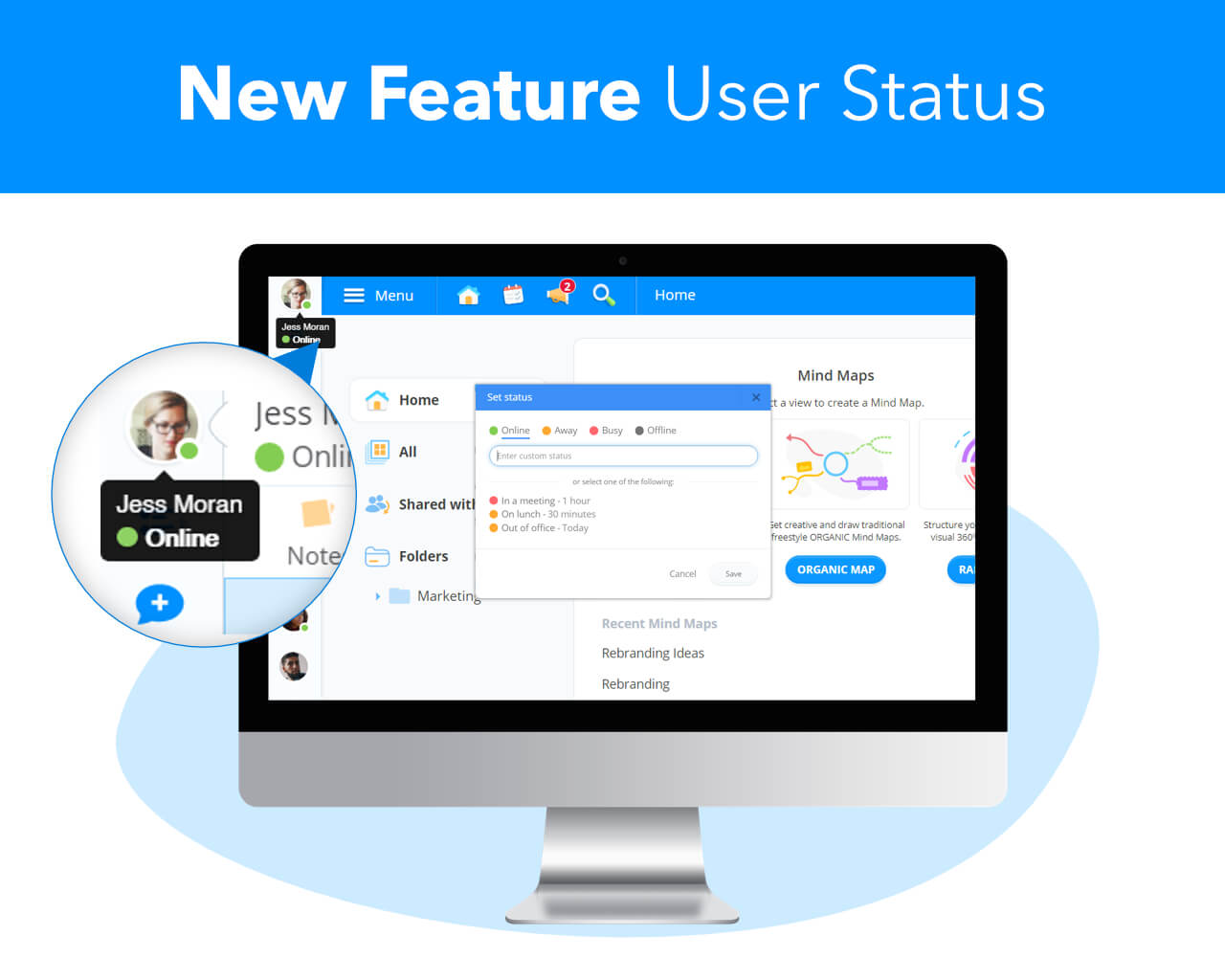
To update your User Status, click on your Ayoa profile avatar at the top left of your screen. Here, you will see a green symbol with ‘Online’ underneath your name.

If you click this status, a pop-up box will appear with your User Status options. You can choose from any of the following options:
- Online – for when you’re online in Ayoa and available to the rest of your team.
- Away – for when you’re away from your desk or working on something outside of the Ayoa app.
- Busy – for when your availability is limited.
- Offline – for when you’re offline or not logged into Ayoa. Ayoa will automatically set your status to ‘Offline’ once you log out or close the app down.

In this pop-up, you will also see some common pre-populated User Statuses which you can use, such as ‘On lunch’, ‘In a meeting’ and ‘Out of the office’.
Once you have selected your status, you will also have the option to set your status to clear after a specific time. As well as this, you will also see a text bar where you can ‘Enter custom status’. This is your space to add any further information regarding your availability to keep your team informed.
Once you have selected your User Status, simply click ‘Save’ and you will then see your User Status updated underneath your name. The rest of your team will then be able to see the User Status color icon next to your avatar – they can also hover over your avatar to see any custom status information you have added.
Ready to make your team communication clearer and more streamlined than ever before? Simply Jump into Ayoa to give User Status whirl and watch your team communication soar!